> ## Documentation Index
> Fetch the complete documentation index at: https://innateinc-docs-skills-0-7-interface.mintlify.site/llms.txt
> Use this file to discover all available pages before exploring further.
# Building with the Simulator
> Develop skills, agents, and integrations against the simulated MARS
While the simulator is up, an entire robot is running on your machine: the
same Innate OS a physical MARS runs, inside a Docker container — just
running in the simulated world instead of the real one.
* **It runs from your checkout.** The container has no copy of the software
of its own — the `innate-os` folder you cloned during
[setup](/simulator/setup) is mounted into it live, so editing files on
your machine changes the running robot. No image rebuilds.
* **`workspace/` is your part of it.** [Skills](/software/skills) and
[agents](/software/agents) are Python files in `workspace/custom_skills/`
and `workspace/custom_agents/`, and the robot hot-reloads them the moment
you save. Deeper changes — like the ROS nodes under `ros2_ws/` — need a
build step; the table further down covers what takes effect when.
A real robot runs the same `workspace/`, so whatever you build against the
simulator deploys to hardware unchanged.
Open the cloned folder in your editor, keep the simulator running, and
follow along.
## Your first skill, end to end
Skills are Python classes the AI agent can call — the
[skills overview](/software/skills) covers the full interface. The loop below
takes about two minutes and exercises the whole pipeline: file watcher, hot
reload, the web app, and the simulated base.
Create `workspace/custom_skills/victory_spin.py`:
```python theme={null}
from innate import Mobility, Skill
class VictorySpin(Skill):
"""Spin the robot in place to celebrate. Use when something goes well
and the robot should show it — spins is how many full turns, 1 to 3."""
mobility: Mobility
def execute(self, spins: int = 1):
for _ in range(2 * min(int(spins), 3)):
self.mobility.rotate(3.14) # half turn, blocking; two = one spin
return "Spun with joy"
```
Three things come from that class with no boilerplate: the **class name**
is the skill name (`victory_spin`), the **docstring** is what the agent
reads to decide when to call it, and the **`execute()` signature** is the
parameter schema — so type hints and defaults are part of the contract.
`mobility: Mobility` is the whole wiring for the base.
The container watches `workspace/` and hot-reloads skills within a second
or two of saving. No build, no restart.
Open the web app, go to the skill menu, and run `victory_spin`
([manual triggering](/software/skills/manual-triggering)) — the simulated
robot spins in the 3D view:
Edit the file, save, trigger again: that's the whole iteration loop.
## Hand it to an agent
Skills become interesting when an [agent](/software/agents) can decide to
use them. Drop a minimal agent next door in
`workspace/custom_agents/cheerful.py`:
```python theme={null}
from innate import Agent, SkillRef
from custom_skills.victory_spin import VictorySpin
class CheerfulAgent(Agent):
@property
def id(self) -> str:
return "cheerful"
@property
def display_name(self) -> str:
return "Cheerful"
def get_skills(self) -> list[SkillRef]:
return [VictorySpin]
def get_prompt(self) -> str:
return "You are an enthusiastic robot. Celebrate good news physically."
```
Naming the class is preferred — your editor catches a rename or a typo before
the robot does. Full ID strings work too (`"local/victory_spin"`), prefixed by
where the skill comes from: your own skills in `workspace/custom_skills/` are
`local/`, shipped ones are `innate-os/`.
It hot-reloads the same way. Select **Cheerful** in the web app's agent
picker, start it, and tell it in chat that you just merged a big PR — it
should decide, on its own, that the situation calls for `victory_spin`.
Watch its reasoning stream in the AI-thoughts panel.
Agent chat needs a brain backend — the hosted Innate service or a local
Gemini key, whichever you chose during
[setup](/simulator/setup#start-the-simulator). See
[Anatomy of an Agent](/software/agents/definitions) for everything an agent
can define.
## When do changes take effect?
| You edited | What to do |
| -------------------------------- | ----------------------------------------------------------------- |
| skills or agents in `workspace/` | **nothing** — they hot-reload on save |
| ROS code in `ros2_ws/src/` | inside the container: `innate build`, then `innate restart` |
| the simulated world itself | `./innate-sim down && ./innate-sim up` — physics runs on the host |
If a hot reload ever seems missed, trigger one manually from inside the
container:
```bash theme={null}
./innate-sim sh
ros2 service call /brain/reload std_srvs/srv/Trigger
```
## Watching it run
Three windows into the running stack, from shallow to deep:
* **`./innate-sim` (no arguments)** — the live dashboard: overall health, the
world server's render backend and speed, and the brain log.
* **`./innate-sim logs `** — tail one subsystem's log; `brain` shows
skill loading and agent reasoning, `startup` aggregates everything from
the last boot, `world-server` covers physics and rendering.
* **The tmux session** — every subsystem in its own window:
```bash theme={null}
./innate-sim sh
tmux attach -t innate # zenoh, rosbridge, sim-driver, nav-brain, behavior, arm-ik, vision-nav, console-webapp
```
### Foxglove and ROS tooling
Prefer [Foxglove](/software/foxglove-setup) or your own ROS tooling? The sim
launches a Foxglove bridge for you — nothing to start.
In [Foxglove](https://foxglove.dev), choose **Open connection → Foxglove
WebSocket**.
Enter `ws://localhost:8765` and connect. You get TF, `/scan`,
`/mars/main_camera/points`, the camera topics, and `/cmd_vel` teleop.
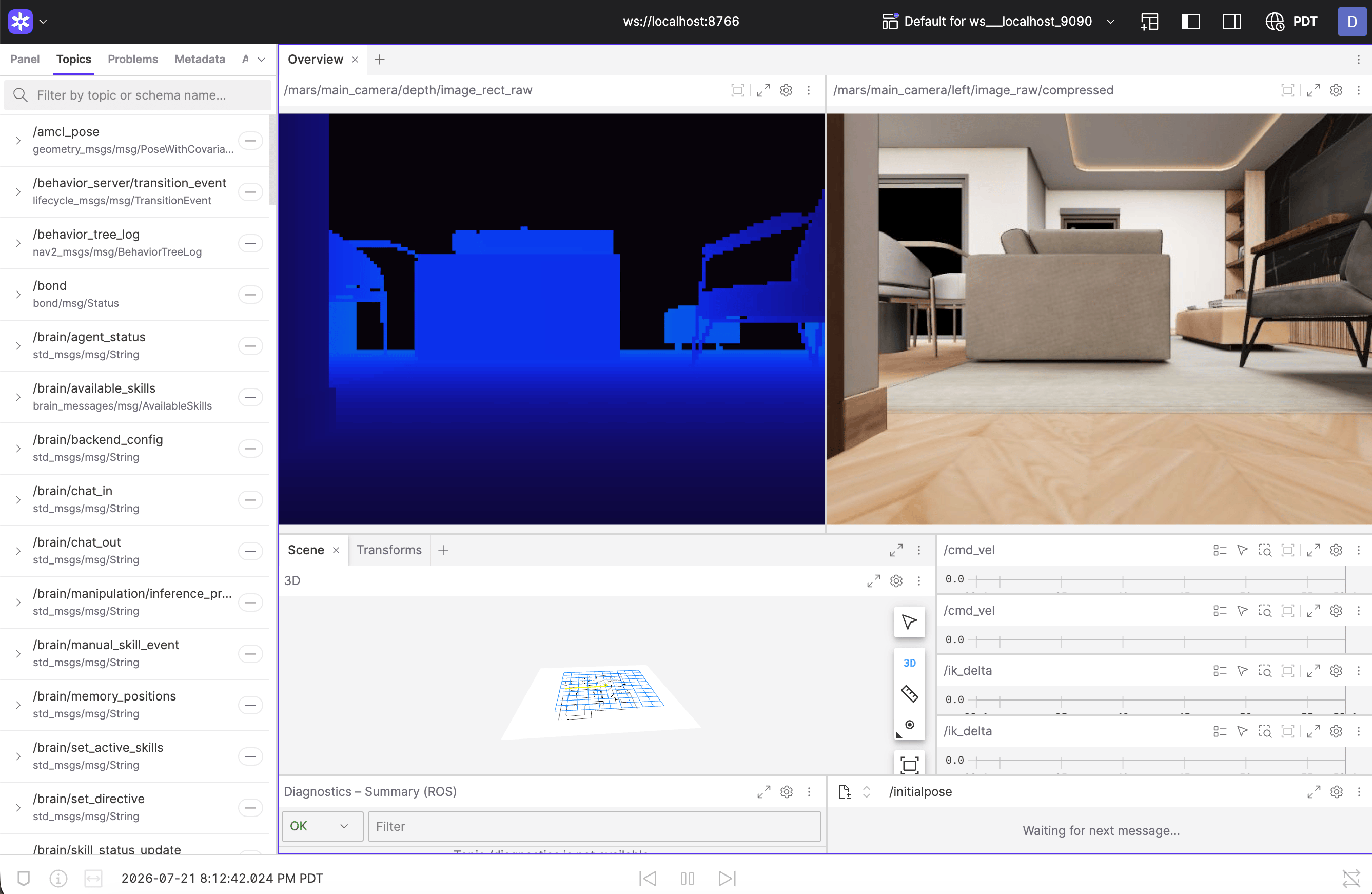 Running the **local brain**? Its cloud-agent owns port `8765`, so the
Foxglove bridge shifts to `ws://localhost:8766` — the dashboard and startup
log always print the exact address. For rosbridge clients,
`ws://localhost:9090` is open too.
The simulated driver publishes the exact topic surface of the real hardware
drivers — same topics, types, rates, and frame names — so anything you build
against it (input devices, dashboards, recorders) carries over to hardware
unchanged.
## What's different from a real robot
The point of the digital twin is that almost nothing is — but a few
hardware-bound features have no simulated counterpart:
* **Speech** requires the hosted backend: the web app's speak bar disables
itself with a hint when the sim runs on a local Gemini key or without a
backend.
* **Voice input** — there is no simulated microphone; talk to the agent
through chat instead.
* **Policy-defined (trained) skills** are trained from teleoperation
recordings on physical hardware; the simulator is for developing and
testing [code-defined skills](/software/skills/code-defined-skills) and
agents.
Everything else — navigation, lidar, cameras, depth, the arm — behaves and
publishes like the hardware it stands in for.
## The simulated world as a Python object
For scripts, notebooks, and RL loops there is a second way in that needs no
ROS and no Docker: `VirtualMars`, the whole simulated world as one Python
object.
```python theme={null}
from mars_sim_driver.core import VirtualMars
sim = VirtualMars()
sim.step(1.0) # settle from spawn; step(dt) runs physics
sim.set_cmd_vel(0.3, 0.5) # vx m/s, wz rad/s
x, y, yaw = sim.pose() # ground truth
rgb = sim.render_rgb("main") # 640x480 camera image
scan = sim.lidar_scan(360, 12.0) # planar lidar
sim.reset() # back to spawn, zero velocity
```
The
[simulator README](https://github.com/innate-inc/innate-os/blob/main/sim/README.md)
has the walkthrough notebook, the full API, and the architecture of the
simulation stack.
Running the **local brain**? Its cloud-agent owns port `8765`, so the
Foxglove bridge shifts to `ws://localhost:8766` — the dashboard and startup
log always print the exact address. For rosbridge clients,
`ws://localhost:9090` is open too.
The simulated driver publishes the exact topic surface of the real hardware
drivers — same topics, types, rates, and frame names — so anything you build
against it (input devices, dashboards, recorders) carries over to hardware
unchanged.
## What's different from a real robot
The point of the digital twin is that almost nothing is — but a few
hardware-bound features have no simulated counterpart:
* **Speech** requires the hosted backend: the web app's speak bar disables
itself with a hint when the sim runs on a local Gemini key or without a
backend.
* **Voice input** — there is no simulated microphone; talk to the agent
through chat instead.
* **Policy-defined (trained) skills** are trained from teleoperation
recordings on physical hardware; the simulator is for developing and
testing [code-defined skills](/software/skills/code-defined-skills) and
agents.
Everything else — navigation, lidar, cameras, depth, the arm — behaves and
publishes like the hardware it stands in for.
## The simulated world as a Python object
For scripts, notebooks, and RL loops there is a second way in that needs no
ROS and no Docker: `VirtualMars`, the whole simulated world as one Python
object.
```python theme={null}
from mars_sim_driver.core import VirtualMars
sim = VirtualMars()
sim.step(1.0) # settle from spawn; step(dt) runs physics
sim.set_cmd_vel(0.3, 0.5) # vx m/s, wz rad/s
x, y, yaw = sim.pose() # ground truth
rgb = sim.render_rgb("main") # 640x480 camera image
scan = sim.lidar_scan(360, 12.0) # planar lidar
sim.reset() # back to spawn, zero velocity
```
The
[simulator README](https://github.com/innate-inc/innate-os/blob/main/sim/README.md)
has the walkthrough notebook, the full API, and the architecture of the
simulation stack.