

- It runs from your checkout. The container has no copy of the software
of its own — the
innate-osfolder you cloned during setup is mounted into it live, so editing files on your machine changes the running robot. No image rebuilds. workspace/is your part of it. Skills and agents are Python files inworkspace/custom_skills/andworkspace/custom_agents/, and the robot hot-reloads them the moment you save. Deeper changes — like the ROS nodes underros2_ws/— need a build step; the table further down covers what takes effect when.
A real robot runs the same
workspace/, so whatever you build against the
simulator deploys to hardware unchanged.Your first skill, end to end
Skills are Python classes the AI agent can call — the skills overview covers the full interface. The loop below takes about two minutes and exercises the whole pipeline: file watcher, hot reload, the web app, and the simulated base.1
Create the skill file
Create Three things come from that class with no boilerplate: the class name
is the skill name (
workspace/custom_skills/victory_spin.py:victory_spin), the docstring is what the agent
reads to decide when to call it, and the execute() signature is the
parameter schema — so type hints and defaults are part of the contract.
mobility: Mobility is the whole wiring for the base.2
Save — that's the whole deploy
The container watches
workspace/ and hot-reloads skills within a second
or two of saving. No build, no restart.3
Trigger it
Open the web app, go to the skill menu, and run
victory_spin
(manual triggering) — the simulated
robot spins in the 3D view:Edit the file, save, trigger again: that’s the whole iteration loop.Hand it to an agent
Skills become interesting when an agent can decide to use them. Drop a minimal agent next door inworkspace/custom_agents/cheerful.py:
"local/victory_spin"), prefixed by
where the skill comes from: your own skills in workspace/custom_skills/ are
local/<name>, shipped ones are innate-os/<name>.
It hot-reloads the same way. Select Cheerful in the web app’s agent
picker, start it, and tell it in chat that you just merged a big PR — it
should decide, on its own, that the situation calls for victory_spin.
Watch its reasoning stream in the AI-thoughts panel.
Agent chat needs a brain backend — the hosted Innate service or a local
Gemini key, whichever you chose during
setup. See
Anatomy of an Agent for everything an agent
can define.
When do changes take effect?
If a hot reload ever seems missed, trigger one manually from inside the
container:
Watching it run
Three windows into the running stack, from shallow to deep:-
./innate-sim(no arguments) — the live dashboard: overall health, the world server’s render backend and speed, and the brain log. -
./innate-sim logs <target>— tail one subsystem’s log;brainshows skill loading and agent reasoning,startupaggregates everything from the last boot,world-servercovers physics and rendering. -
The tmux session — every subsystem in its own window:
Foxglove and ROS tooling
Prefer Foxglove or your own ROS tooling? The sim launches a Foxglove bridge for you — nothing to start.1
Open a connection in Foxglove
In Foxglove, choose Open connection → Foxglove
WebSocket.
2
Connect to the bridge
Enter
ws://localhost:8765 and connect. You get TF, /scan,
/mars/main_camera/points, the camera topics, and /cmd_vel teleop.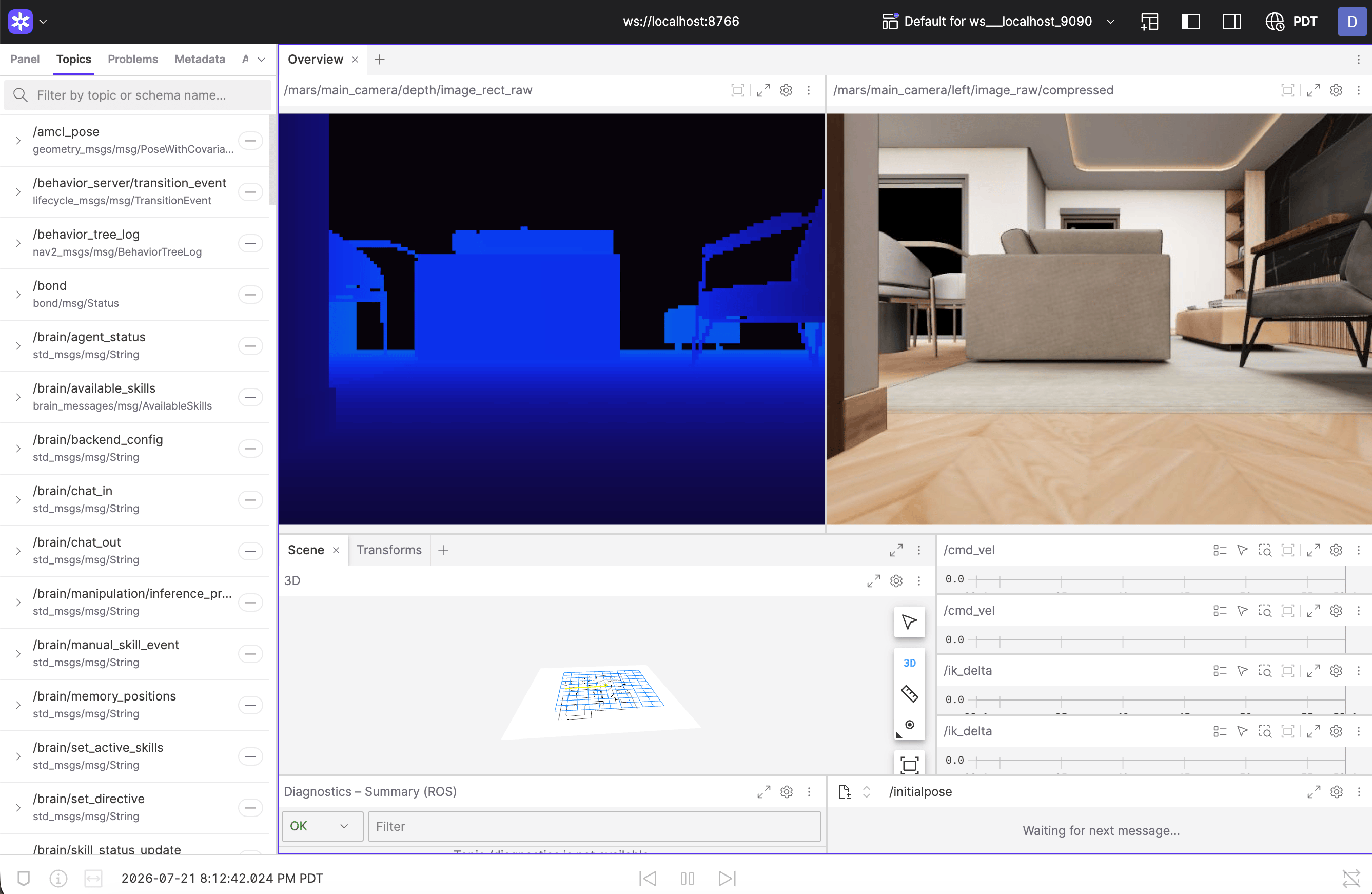
Running the local brain? Its cloud-agent owns port
8765, so the
Foxglove bridge shifts to ws://localhost:8766 — the dashboard and startup
log always print the exact address. For rosbridge clients,
ws://localhost:9090 is open too.What’s different from a real robot
The point of the digital twin is that almost nothing is — but a few hardware-bound features have no simulated counterpart:- Speech requires the hosted backend: the web app’s speak bar disables itself with a hint when the sim runs on a local Gemini key or without a backend.
- Voice input — there is no simulated microphone; talk to the agent through chat instead.
- Policy-defined (trained) skills are trained from teleoperation recordings on physical hardware; the simulator is for developing and testing code-defined skills and agents.
The simulated world as a Python object
For scripts, notebooks, and RL loops there is a second way in that needs no ROS and no Docker:VirtualMars, the whole simulated world as one Python
object.